> ## Documentation Index
> Fetch the complete documentation index at: https://docs.designlabpremium.com/llms.txt
> Use this file to discover all available pages before exploring further.
# Creating Team
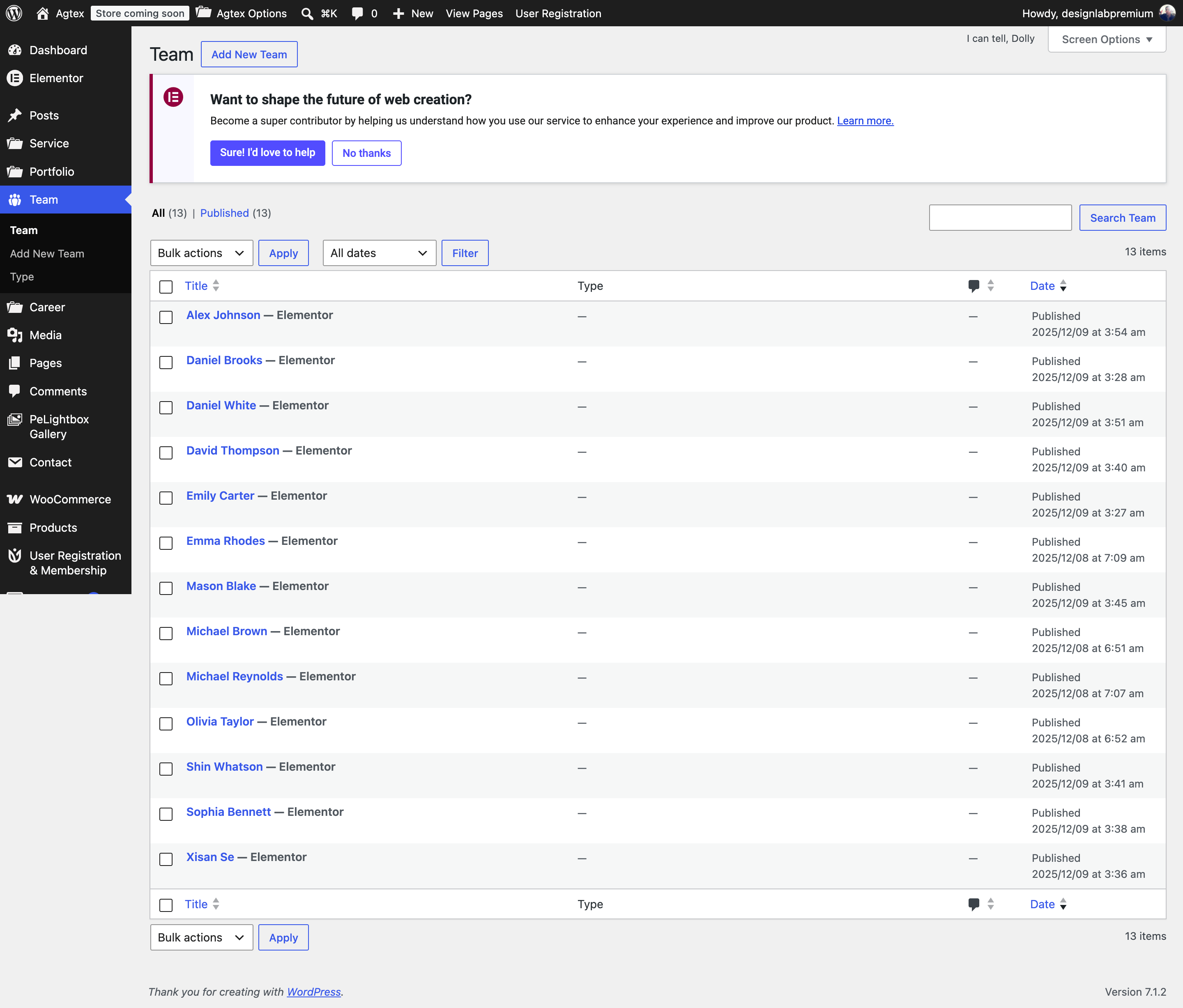
After you have made your Team page, you need to create Team post so they will show up on the Team pages
### Follow the Steps Below To Create A Team Post
**Step 1** – Navigate to Team in your WordPress admin.
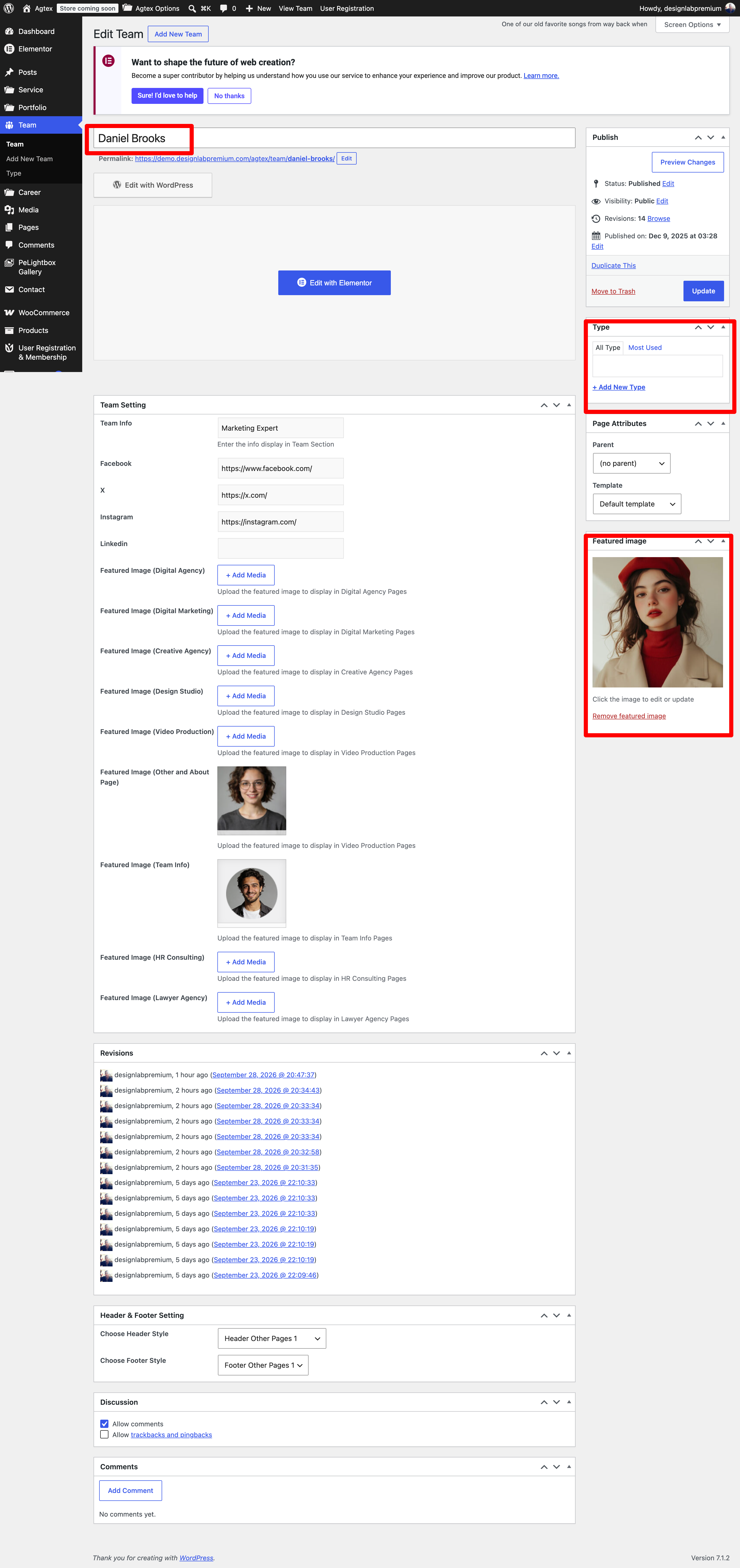
**Step 2** – Click on Add New to make a new Team. Create a title and insert your Team content in the editing field. You can use any of our short code builder elements inside the Team.
**Step 3** – Add Type from the right side. To assign it to the Team, check the box next to the type name.
**Step 4** – For a single image, click the first Featured Image Box, select an image and click “Set Featured Image”.
**Step 5** – Add information.
**Step 6** – Choose Header and Footer.
**Step 7** – Once you are finished, click Publish to save the Team.
 ### Here Is A Screenshot That Shows The Various Areas Of The Team Post Described Above.
 This documentation is built and hosted on [Mintlify](https://mintlify.com), a developer documentation platform.